 ContextVault
Desktop app · Getting started
Set up Desktop for a project
ContextVault Desktop gives you visual controls for the same local engine and Markdown vault used by the package. Start with a folder, then capture or inspect context at your own pace.
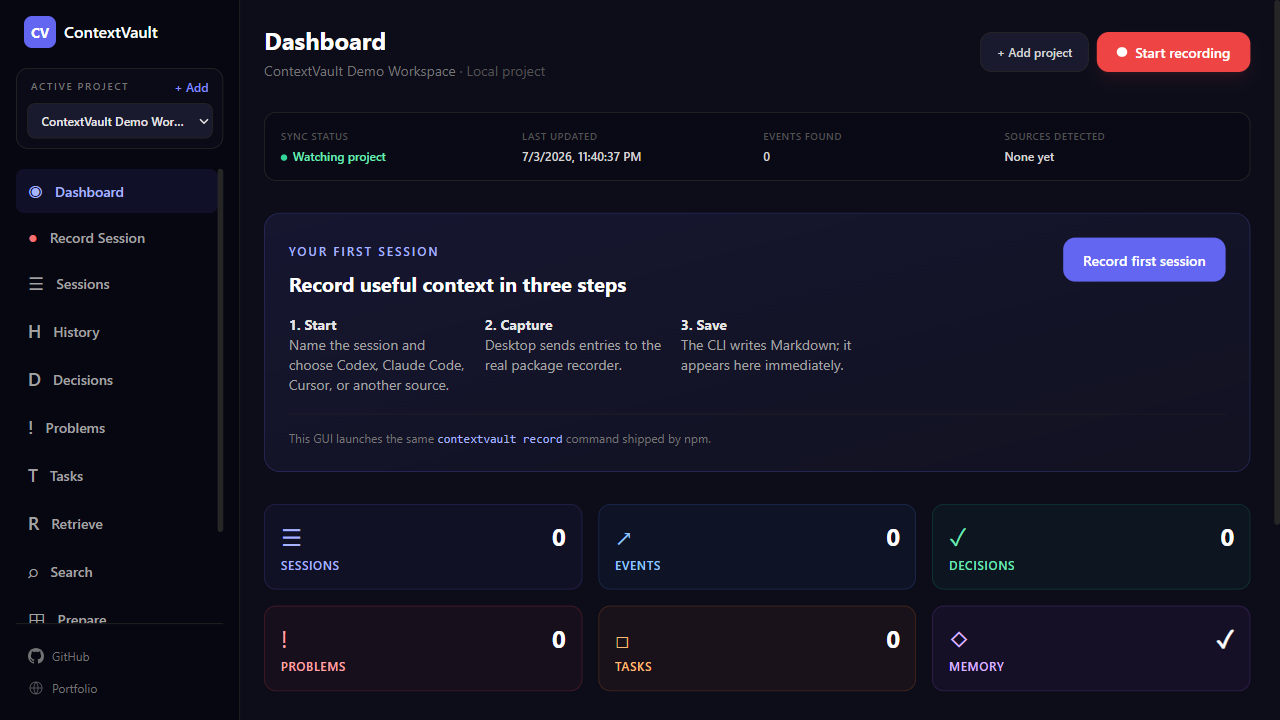
Step 1 · Select the project folder.
First launch
- 01
Install the app
Download the current Windows installer or Linux AppImage. macOS packaging is currently a local source build.
- 02
Choose a project
Use Open first project or + Add. Select the repository or working folder whose context you want to keep.
- 03
Initialize local storage
Desktop creates missing .contextvault folders in the selected project.
- 04
Record explicitly
Open Record Session, enter a title and source, capture events, then choose Finish & save. The app does not silently record another terminal process.
- 05
Review and prepare
Use Sessions, Search, Retrieve, or Prepare to find evidence and create a handoff.
Multiple projects
Use Active project → + Add in the sidebar to register another folder. Switch active folders from the selector. Settings can switch or remove a recent entry; Remove only clears the recent list and does not delete project data.